Tip #005
·
Use Chrome Split View to Work with Two Tabs Side by Side
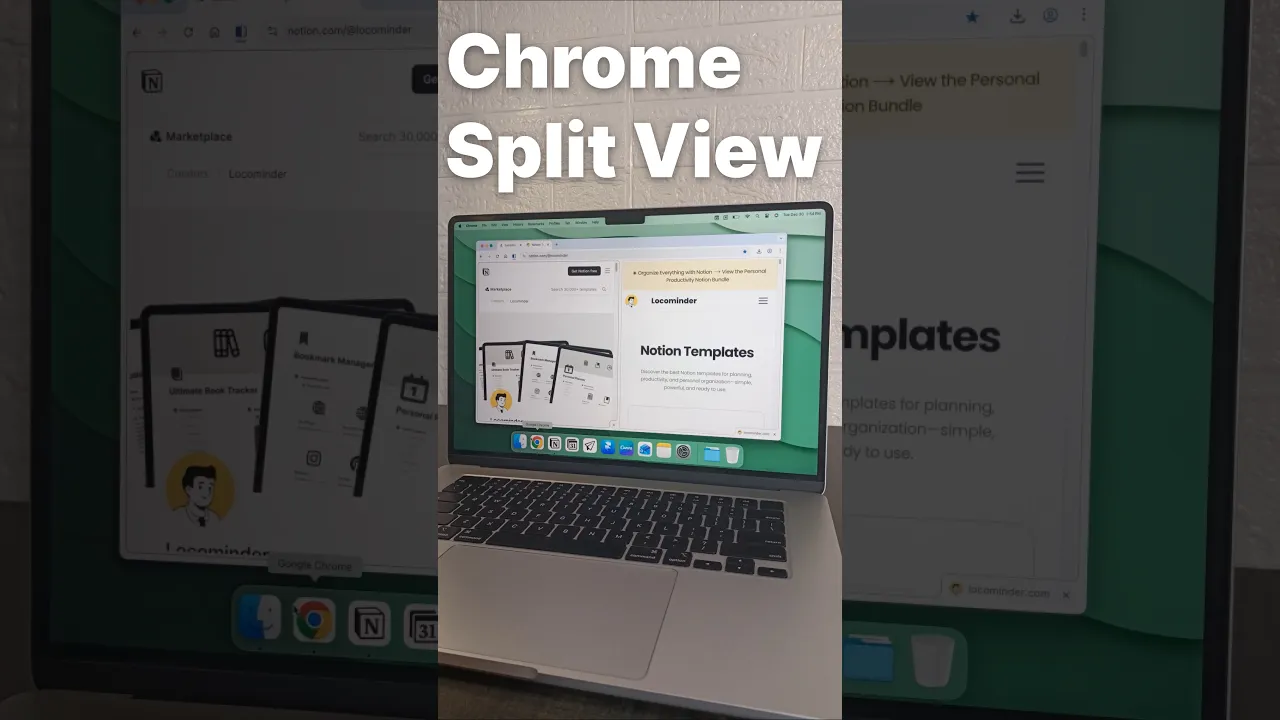
Use Chrome’s Split View feature to view two tabs side by side without constantly switching between them.

Switching between two Chrome tabs can slow you down when you're comparing information, researching, or working from two pages.
Chrome’s Split View lets you view two tabs side by side in the same browser window.
How to Use Chrome Split View
1. Open two tabs
Open the two webpages you want to use together.
2. Open the tab menu
Right-click one of the tabs and look for the option to "Add Tab to New Split View"
3. Choose the second tab
Select the other tab you want to view alongside it.
Now both tabs appear side by side, making it easier to work between them without constantly switching tabs.
When to Use Split View
Compare two webpages
Research while taking notes
Follow a tutorial while working
Compare products or information
Keep a reference page open while writing
Key Takeaway:
When you regularly switch between two tabs, put them side by side instead. It can make your workflow faster and reduce unnecessary tab switching.